Connect MCP servers to AI clients like Claude and ChatGPT
One endpoint for every AI client. How OAuth and Streamable HTTP fit together when Claude, ChatGPT, Gemini or Cursor connects to your MCP server.
In this post
- What a project endpoint is
- How a client signs in through the gateway
- What to check when a client won't connect
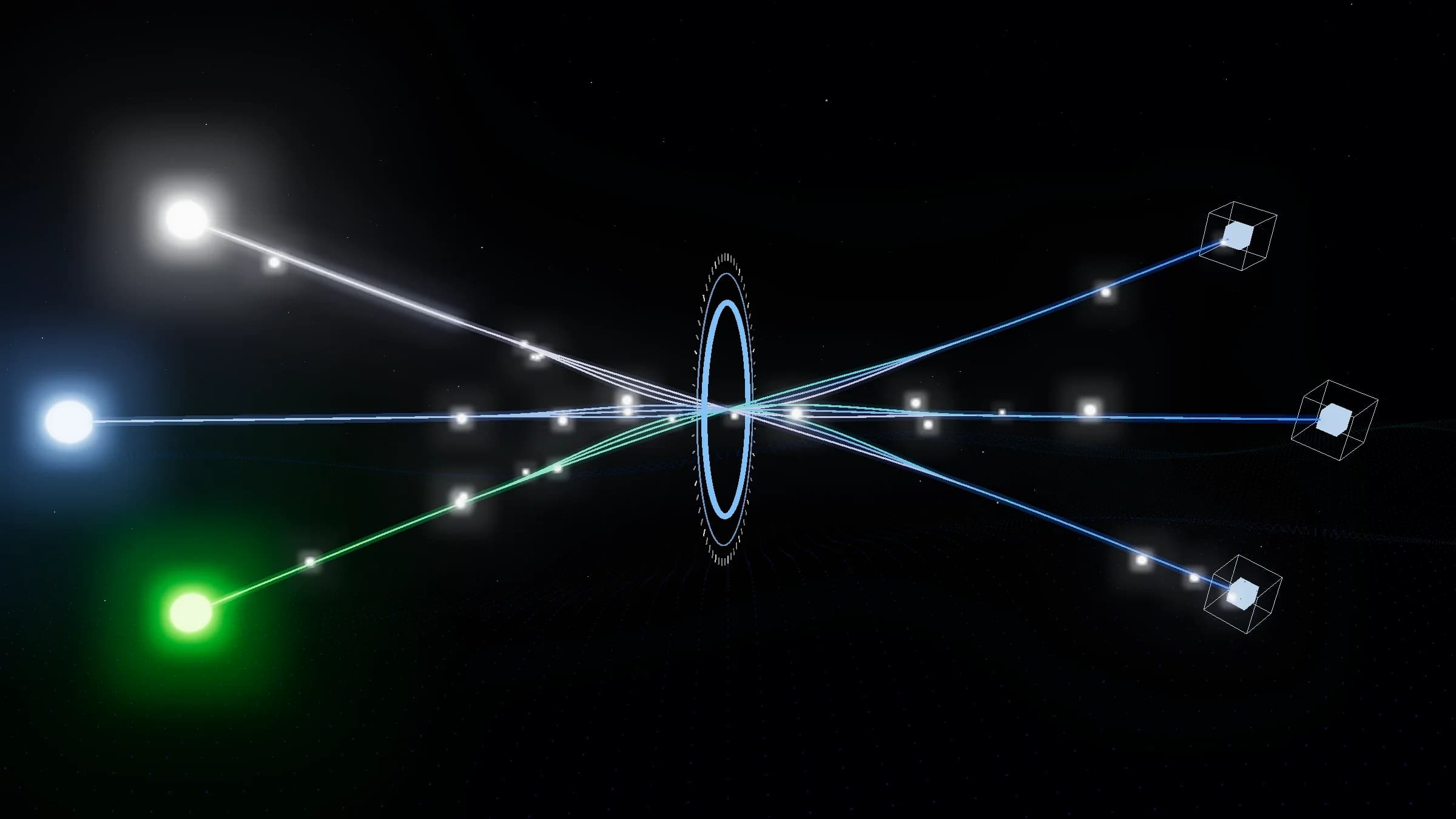
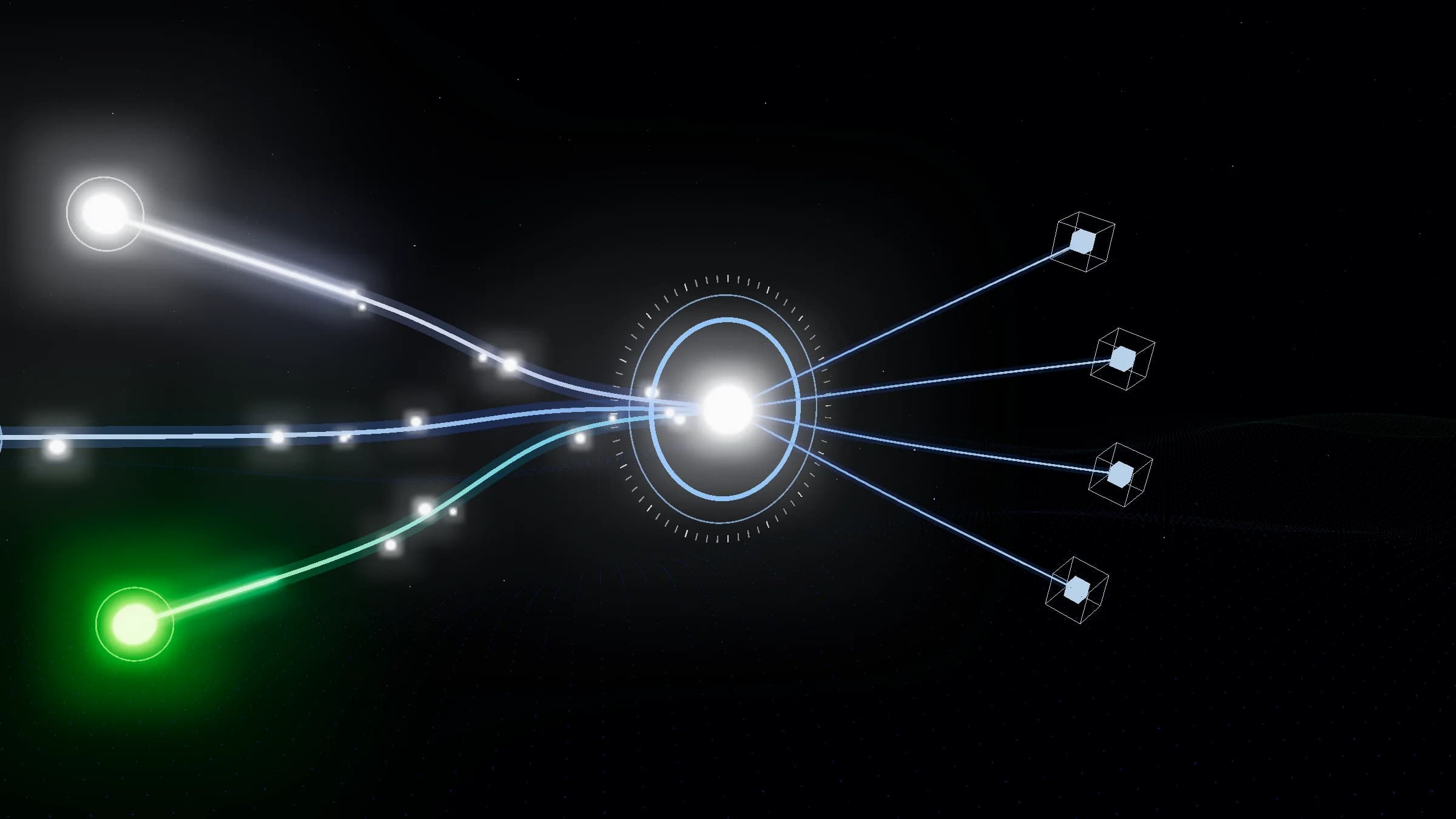
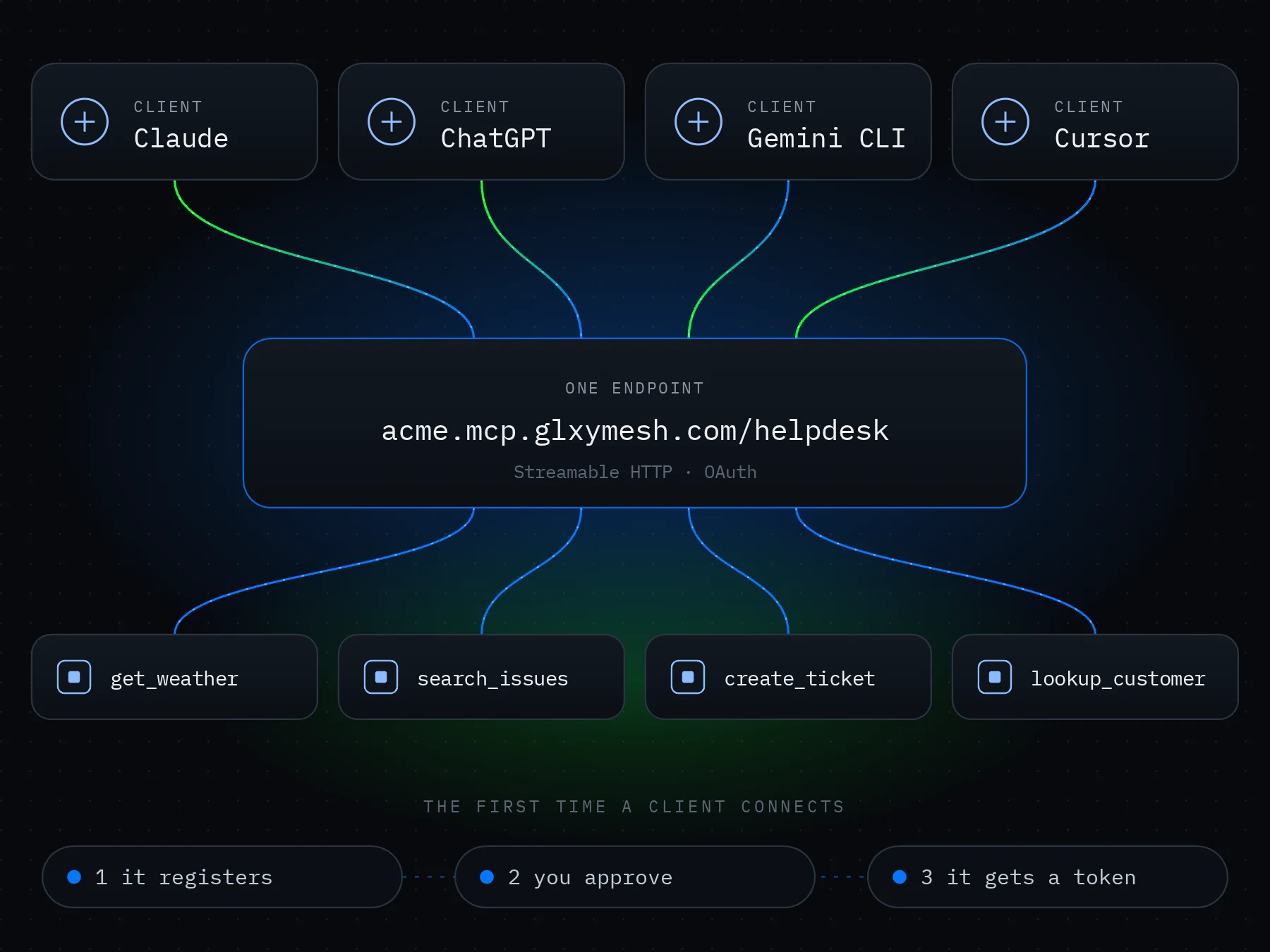
Every Glxymesh project has one MCP endpoint. Each tool you enable in the project is served from it, so you connect a client once and it sees all of them. You don't run a server per tool or per client.
One endpoint per project#
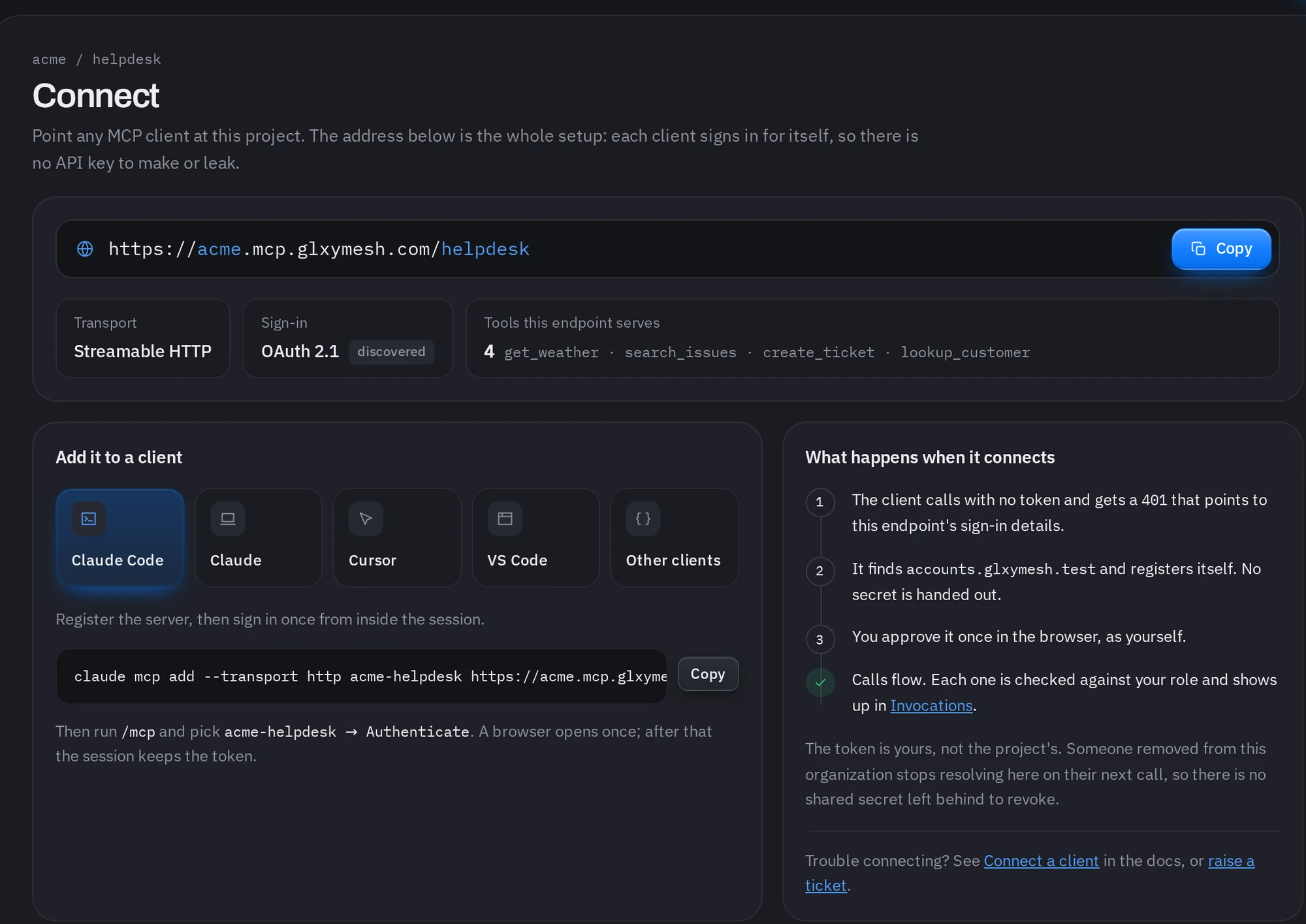
The endpoint speaks the Model Context Protocol over Streamable HTTP. Any client that supports remote MCP servers over that transport can use it: Claude Code, Claude Desktop, Cursor, VS Code and others.
Signing in through the gateway#
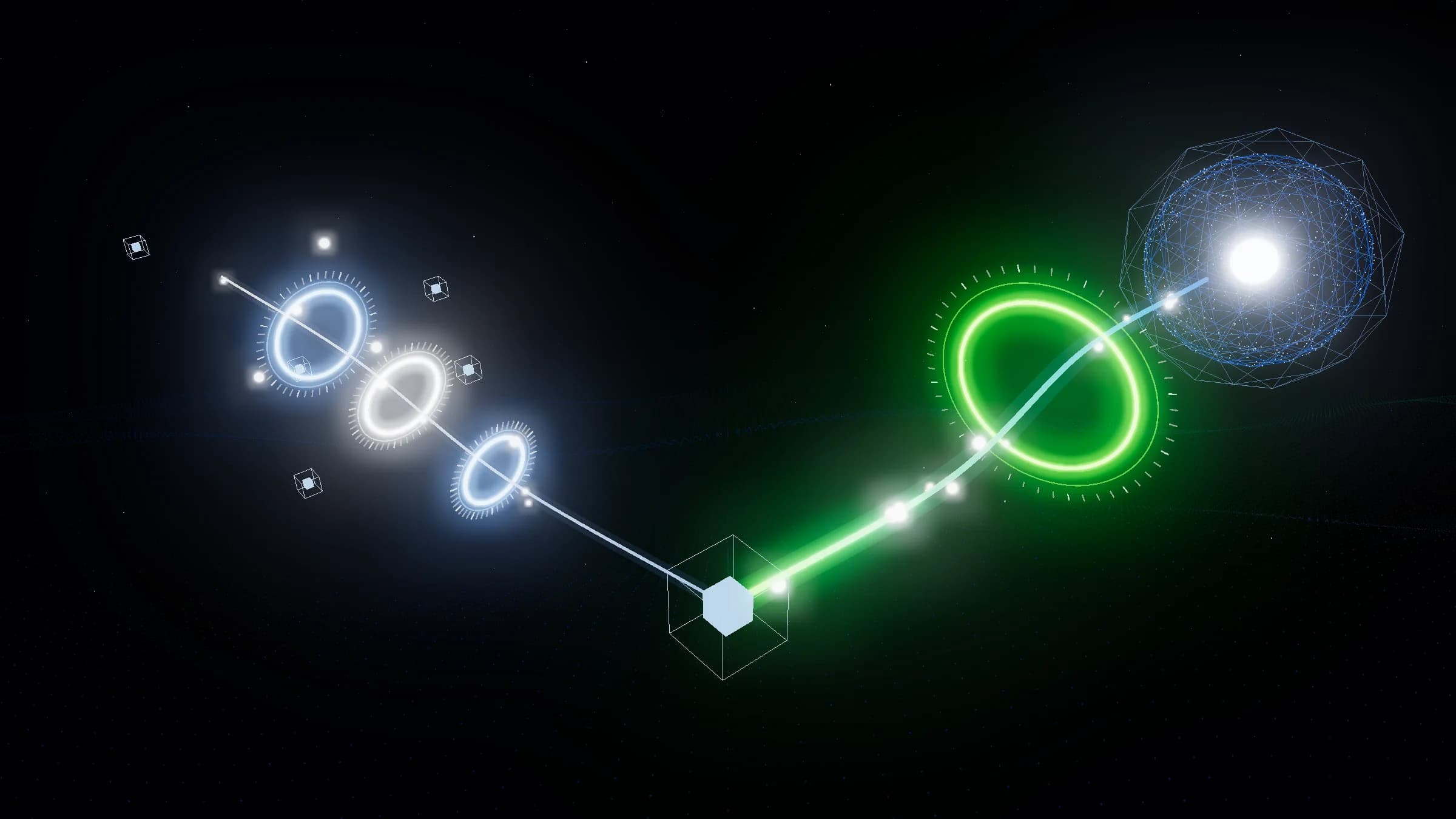
The first time a client connects, the gateway starts an OAuth flow. It supports dynamic client registration, so the client registers itself and you approve access in the browser. The client then holds a Glxymesh access token for that project.
- The client discovers the gateway and registers itself
- You sign in and approve access to the project
- The client receives an access token and lists your tools
Many clients, same tools#
Because the tools live on the project, every connected client gets the same set. Enable a tool and each client can call it; disable it and it disappears from all of them.
When a client won't connect#
| Symptom | Check |
|---|---|
| No tools listed | At least one tool is deployed and enabled in the project |
| Sign-in loops | You approved the project, not only the AI provider account |
| Connection refused | The client supports remote MCP over Streamable HTTP |
The connect guide has per-client steps: docs.glxymesh.com/guides/connect-clients